The guide: LineXinBar's overlay over any game or app
 One button away
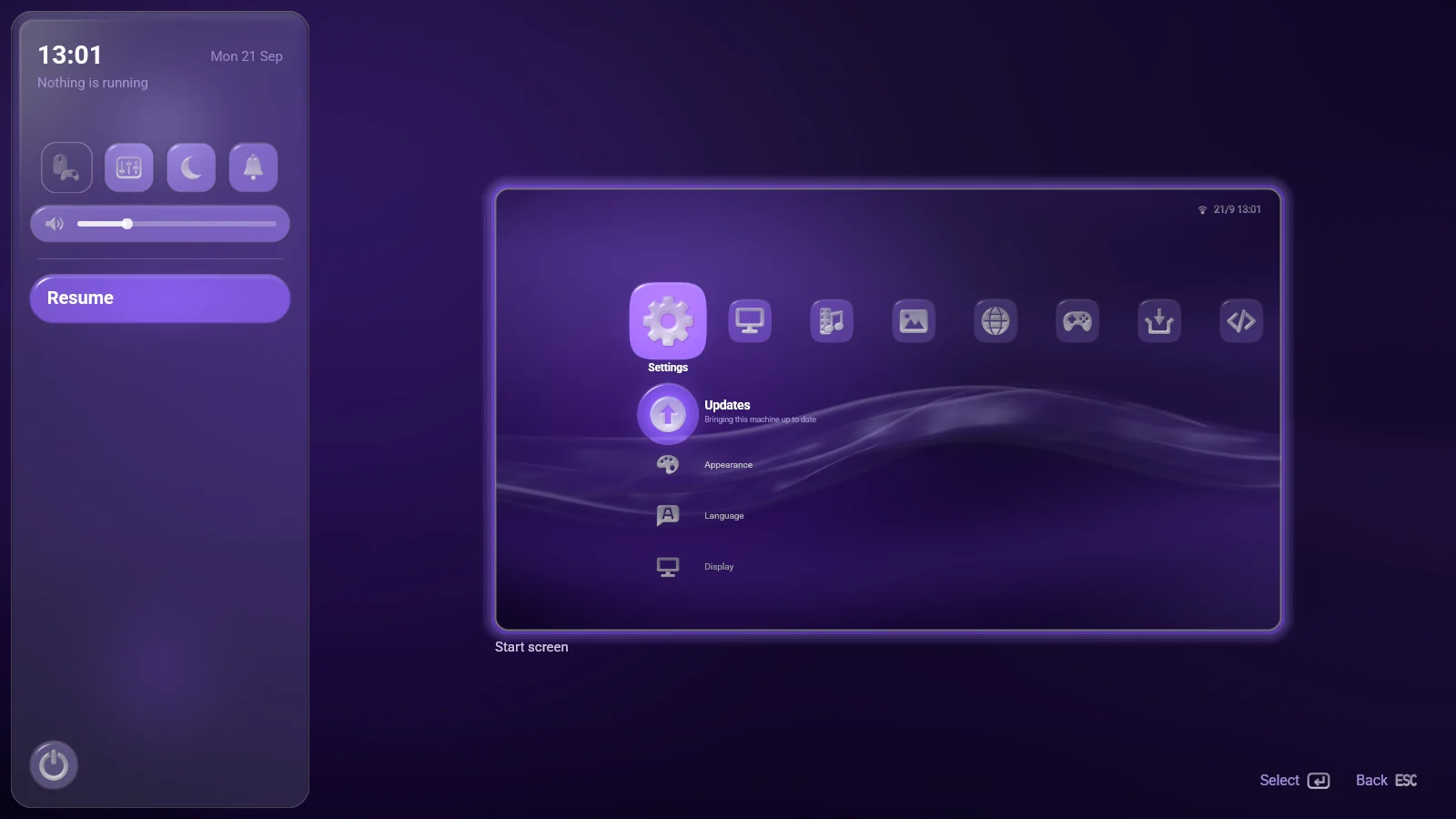
A game fills the screen and takes the keyboard, so there has to be a way out it cannot swallow. Press the controller's guide button — or the Super key — and the guide opens over whatever is running.
It is a column down the left of the screen: the time and what is running at the top, four quick tiles, the volume and brightness, then Resume, Close the application, the Start screen and the Power button for sleep, turning off or logging out. Everything behind it is softened and dimmed.
No application can take that button: the guide is reachable from absolutely everywhere, which is also why nothing but the power button ends the session — Esc opens the guide rather than quitting.
 This website has a guide too — press G, the guide button on a pad, or the button at the top left. Try the accents and the particles from there.
 Switching apps
Beside the guide's column stands a deck of cards — one per window on this display, with the start screen as the last card of all.
They are the live windows, not pictures of them: each flies into its place when the guide opens and back when it closes. Step right into the deck, up and down through it, and press a card to go back to that window. Alt+Tab walks the same deck from a keyboard, and letting go of Alt takes whatever it landed on.
 Quick settings
The four tiles at the head of the guide, and the two bars under them, are the things worth reaching without leaving a game.
- Stick pointer — the controller as a mouse, inside the application in front.
- Volume mixer — every application making a sound, each with its own slider.
- Do not disturb — no bubbles and no chimes; everything still arrives, quietly. It stays on until you turn it off, even across a restart.
- Notifications — everything announced, with a bead on the bell when there is something you have not seen.
- Volume and Brightness — for the whole session and for this display. The volume keys on a keyboard move the same bar from anywhere.
 Volume mixer
One row per application that is making a sound, under the name and icon the bar knows it by. Left and Right slide it; A silences it and brings it back.
A browser with three tabs playing is one row, not three — it is one thing anybody wants to turn down. The shell's own sounds and the start screen's music have a row of their own at the foot, called System.
 Notifications
Applications announce things the standard way, and a bubble rises in the corner with a chime. Everything that arrived is kept in a list behind the bell, newest first.
The bell wears a small bead while something is waiting that nobody has looked at — no number, because what matters from across the room is that something arrived. Opening the list is what counts as looking.
 Stick pointer
Plenty of what runs on a couch machine was made for a mouse — a browser, an emulator's menu, a settings page. One tile turns the controller into one, inside the application in front.
| Control | What it does |
|---|---|
| Right stick | Moves the pointer |
| Right trigger | Left click |
| Left trigger | Right click |
| Left stick, or the D-pad | Scrolls what is under it |
The triggers click because that is where a handheld's desktop mode puts the click. The pointer stays inside the application's window, and it can be switched on for one application permanently.
 Picture-in-picture
Pop a video out of your browser into picture-in-picture and it floats in a corner, in front of everything — over a game, over the start screen, even over the guide.
It never takes the keyboard from what you are doing, and it is not a window to switch to; it is simply still there. Its size and corner are set under Settings › System › Picture-in-Picture, and a pad can move or resize it from its own menu.
 Context menus
A does the one thing a row is for. Everything else lives behind the top face button — Y on an Xbox pad, △ on a PlayStation one, the right mouse button, or F10.
The menu grows out of the thing it is about and folds back into it when you answer. Games, applications and files all have one; a value in Settings does not, and the button hint only offers Options where a press would actually raise something.
Applications and games carry a Resolution row here, to let something heavy draw at fewer pixels.