
Games on LineXinBar: Steam, Epic Games, RetroArch and PS3
 Steam
Steam
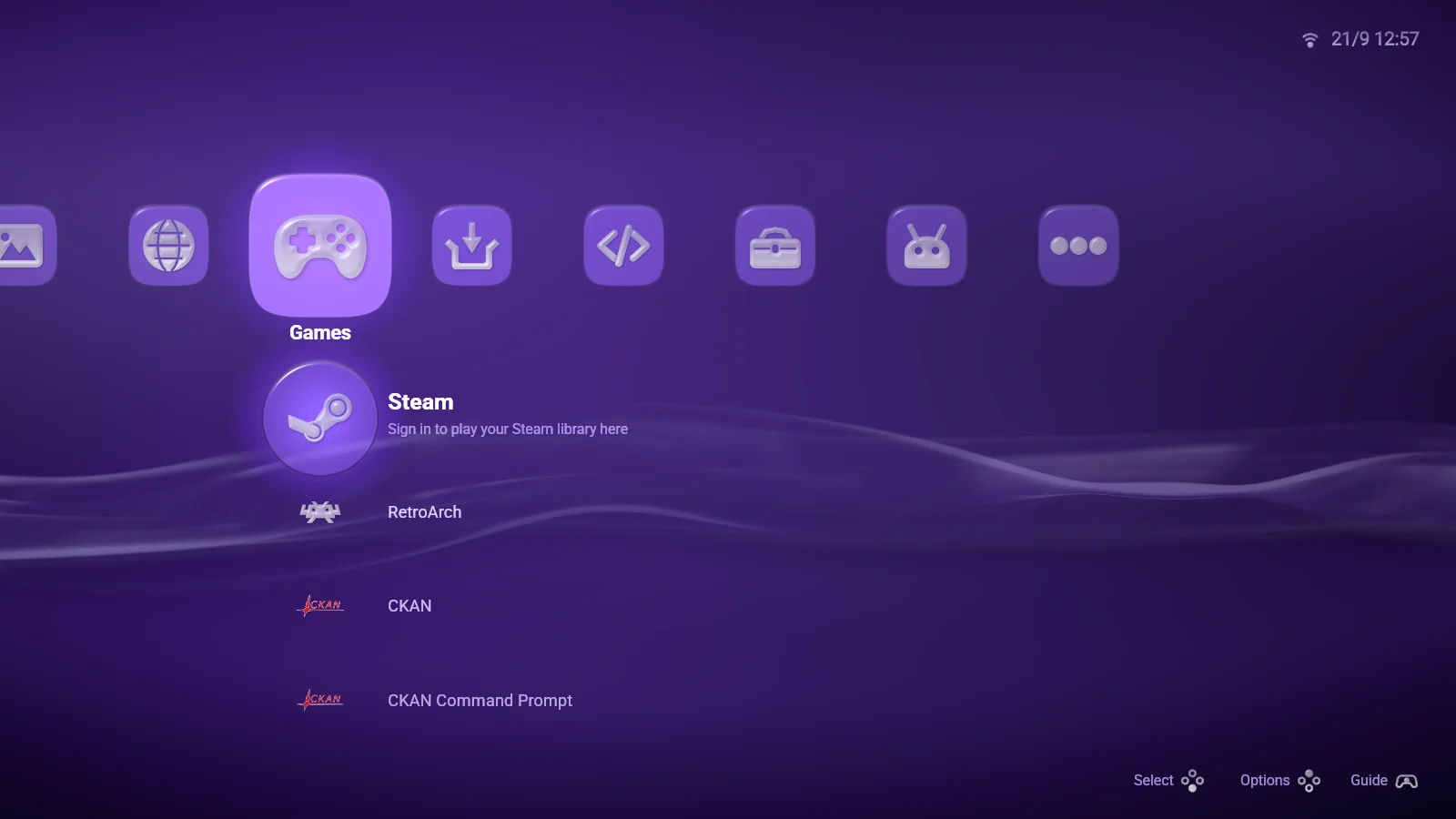
The Games column opens with one row of the shell's own: Steam. Sign in once and a Steam column appears right after Games, holding your whole library.
Signing in is a panel with the two ways Steam offers: scan a code with your phone in the Steam app, so nothing has to be typed with a thumbstick, or type your account name and password and answer Steam Guard. Your password is never stored — the machine keeps only the sign-in token Steam hands back, and shows up in your account's Steam Guard settings as LineXinBar, where you can sign it out.
- Installed games first, with how much room each takes and how long you have played it; everything else underneath.
- Covers, not icons. Each row is the game's own cover, and the game under the cursor puts its artwork behind the whole screen, dimmed so the words stay readable.
- Search, sort and letters to narrow a big library, and a menu on every game to install, update, uninstall or move it between drives.
- Offline too. With no connection the library still comes up from what the machine remembers, and installed games still play.
 Playing a game
Press an installed game and it plays. A loading screen grows out of the tile you pressed and holds the display until the game's window is there.
Valve's client is still what runs the game — it has to be, for your saves, Proton, anti-cheat and everything else Steam does — but it is kept out of sight. You never have to look at Steam's own windows to start something from the bar.
When Steam stops to ask something on the way — a cloud save that disagrees with the one on the disk, an agreement, a launch option — the question comes to the shell's own panel, with Steam's answers as rows you can reach with the stick. Choose one and the game carries on starting.
Big Picture and the ordinary Steam window are still one press away, on the Steam row's menu, for the parts of Steam the bar does not cover.
 Friends and chat
X on a pad, or Shift on a keyboard, brings in your friends list down the right of the screen — who is in a game, who is around, who is away.
Press somebody to open your conversation with them. Messages you wrote sit on the right in the accent colour, theirs on the left in glass, and walking back up through what was said shows when each message was sent. You can set your own status — online, away, invisible — from the head of the list.
When a friend invites you to their game, the invitation arrives in the conversation as a card with the game's name. One press takes it up: the game starts and joins them.
 Epic Games
Install the optional lxb-heroic package and an Epic Games row joins Steam at the head of Games, with a column of its own for your library.
It is built on Heroic Games Launcher, so your account, your games and your settings are Heroic's — open Heroic and it shows the same things. The row does whatever is left to do, one step at a time: download Heroic, fetch something to run games with, sign in, then step into your library.
- Sign in with your phone, from a code on screen, or on the screen itself — there is never a password field to fill in with a pad.
- The same column as Steam's: covers, search, letters, the same eight ways to sort, and installing, updating and uninstalling from a game's menu.
- Cloud saves, playing without a connection, and achievements in Trophies. Epic purchases that play through the EA app or Ubisoft Connect install too, and say so on their row.
 RetroArch
With the optional lxb-retroarch package, your own console games are on the bar — as covers, in a column per console, the way a Steam library is.
Press the RetroArch row and it does whatever is left: installs RetroArch into your own Flatpak installation if it is missing (no password needed), then asks where your games are. Keep one folder per console — ROMs/psx, ROMs/snes, ROMs/megadrive — and that is all the setup there is.
- Emulators are fetched for you. Choosing the folder downloads the right core for every console in it, and a console added later asks "Get it and play?" the first time.
- Covers are fetched for you too, from libretro's thumbnail collection, each shelf drawn at the shape of its own console's boxes, with a screenshot of the game behind the display.
- Achievements from RetroAchievements appear in the Trophies column.
 Game discs
Put a game disc in the drive and it is on the bar — at the head of the RetroArch column, with the cursor already on it, so the next press starts it.
The row is the game rather than the drive: its proper name, which console it is for, and its cover on a card of its own. A disc that is music, a film or somebody's files is not a game and stays off the bar; taking the disc out takes the row with it. Nothing jumps while you are in a game, in the guide or typing a search.
 PlayStation 3
The optional lxb-rpcs3 package puts PlayStation 3 games on the bar through RPCS3, in a column of their own.
The row sets itself up with one press — RPCS3 into your own Flatpak installation and the console's system software from Sony's update server — and then finds the folder your games are in. Disc copies, games in folders and packages from the store are all listed.
- The film and the music. Rest the cursor on a game and its short film plays on its card and its music loops underneath, as it did on the console.
- Install a package or clear a game's cache from its menu, and read encrypted discs with keys the helper fetches.
- Each game's trophies, in your language where the game has it, in the Trophies column.
 Trophies
One column for every achievement you have — Steam's, Epic's, RetroAchievements' and your PlayStation 3 trophies — side by side.
Step into a game to see its achievements in three sections, Unlocked, Locked and Hidden, each with its count. A hidden one keeps its secret until you press it. A locked one is drawn in grey, as it is on Steam.
It only ever reads: nothing in the column unlocks, resets or changes anything.